How to Change Folder Icons on Windows and Mac
Learn how to change folder icons on Windows and Mac to organize your desktop. This guide offers practical tips for personalizing your digital workspace.
Swapping out your default folder icons is a pretty simple trick, whether you're on a Windows machine digging into the "Properties" menu or a Mac user opening the "Get Info" window. You can either pick a new look from your system's built-in options or, even better, use a custom image you've downloaded or created.
Why Custom Icons Are a Productivity Superpower
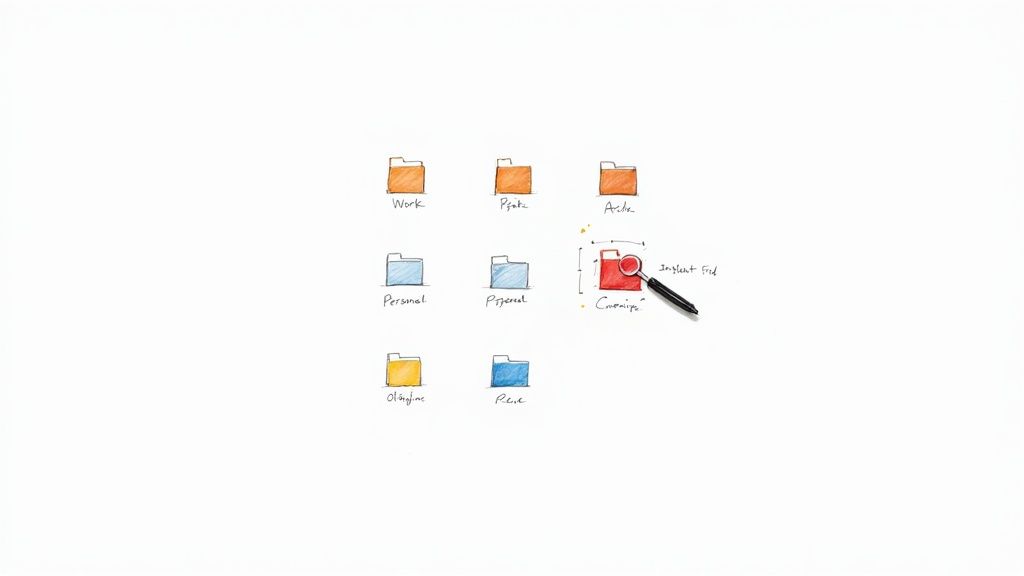
Let's be honest, staring at a sea of identical yellow folders isn't just boring—it's inefficient. Changing your folder icons is more than a cosmetic tweak; it's a genuine productivity hack that gives your files a visual language. This simple system helps your brain find what it needs in a fraction of the time, cutting down on the mental drag of searching.
Think about it. You can instantly spot your "Client Projects" folder because it's a blue briefcase, or your "Finances" folder stands out with a bright green icon. This kind of visual coding transforms your desktop from a generic grid into an intuitive, personal dashboard. The benefits kick in almost immediately:
- Find Files Faster: Your eyes are drawn to unique shapes and colors way quicker than they can read text. You'll save precious seconds every single time you hunt for a file.
- Cut Down on Mental Clutter: A visually organized desktop just feels less chaotic. This can genuinely lower stress and help you stay focused on your actual work.
- Create a Smarter Workflow: Grouping related projects with similar icons helps build a more logical and efficient digital workspace.
This whole idea of using visuals for easier navigation isn't some new trend. It dates all the way back to the early graphical user interfaces (GUIs) of the 1980s. Systems like the Amiga Workbench used "drawers" instead of folders to make the experience feel more tangible. By the time Windows 95 hit the scene, changing folder icons became a standard feature, giving people everywhere the power to personalize their digital desktops.
By assigning specific icons to different types of work, you're essentially creating a mental map of your digital workspace. This simple habit is a cornerstone of effective digital organization, making it easier to maintain order as your files grow.
Mastering a few simple techniques for digital organization can completely change how you work on your computer, making you far more efficient.
Changing Folder Icons in Windows
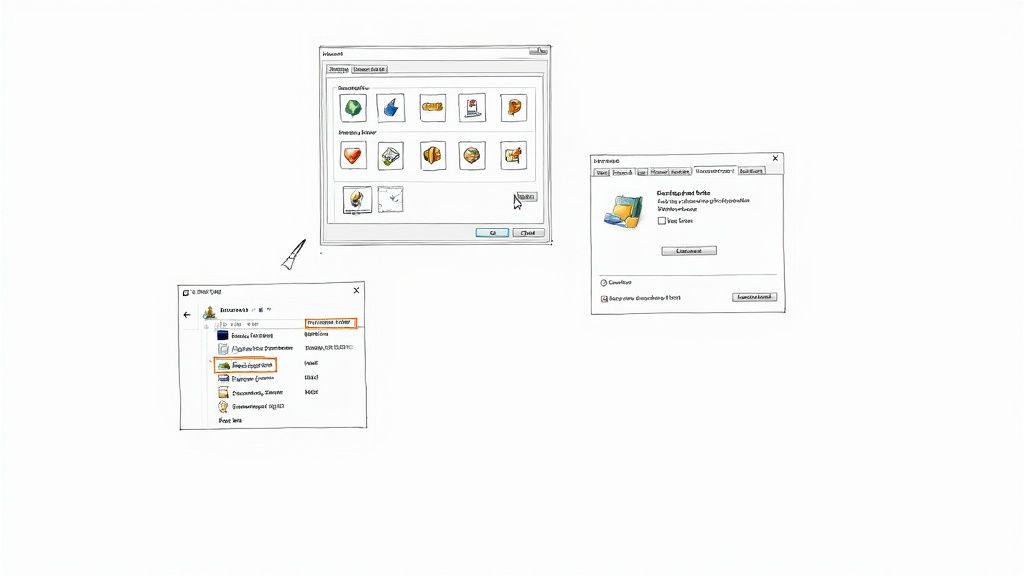
Giving your Windows setup a personal touch is easier than you think, and learning how to change folder icons is a great way to start. The good news? You don't have to wade through a sea of complicated system settings. It's all done right from a folder's properties menu, which makes it incredibly simple.
First, pop open File Explorer and navigate to the folder you want to give a new look. Just right-click on it and choose Properties from the menu that appears. A new window will pop up with a few tabs running along the top.
The Customize Tab
In that Properties window, you’ll want to click on the Customize tab. Think of this as the command center for your folder's appearance. Once you’re there, look toward the bottom for the folder icons section.
You'll see a button that says Change Icon…. Go ahead and click it. This brings up the default Windows icon library, which is a big grid packed with all sorts of system icons, both old and new. Feel free to browse through them—you might find exactly what you're looking for, whether it's a simple document graphic or a specific hardware symbol.
Applying a Custom Icon
While the built-in options are handy, the real magic happens when you use your own icons, like the ones you can create with VibeIcons. Instead of picking an icon from the grid, hit the Browse… button. This lets you hunt down an icon file you've saved anywhere on your computer.
For the best results, make sure your custom icon is in the .ico format. This is the file type Windows loves because a single .ico file can contain multiple sizes of the same icon. This ensures it looks crisp and clean, no matter if you're viewing it as a huge thumbnail or a tiny detail in a list.
Pro Tip: I always keep my custom .ico files in one dedicated folder—something like "My Icons" inside my Documents. If you use an icon from your Downloads folder and then clear it out later, Windows will lose track of the file and your folder will go back to its boring default look.
Once you’ve picked your .ico file and hit OK, you’ll see your new icon in the preview. Click Apply, then OK, and voilà! Your folder is instantly updated.
Troubleshooting Common Issues
Every now and then, the icon might not update right away. It's a common little glitch. If you're still seeing the old yellow folder, try giving your screen a quick refresh. You can either press the F5 key or just right-click an empty space in the window and choose Refresh. That usually does the trick.
If you run into other snags or just want to explore more customization tricks, we've got you covered. We have plenty of other guides that take a deeper look at the Windows folder icon and how to get your desktop looking just right. It's a small tweak, but it really can change how you organize and find your files day-to-day.
How to Change Folder Icons on Your Mac
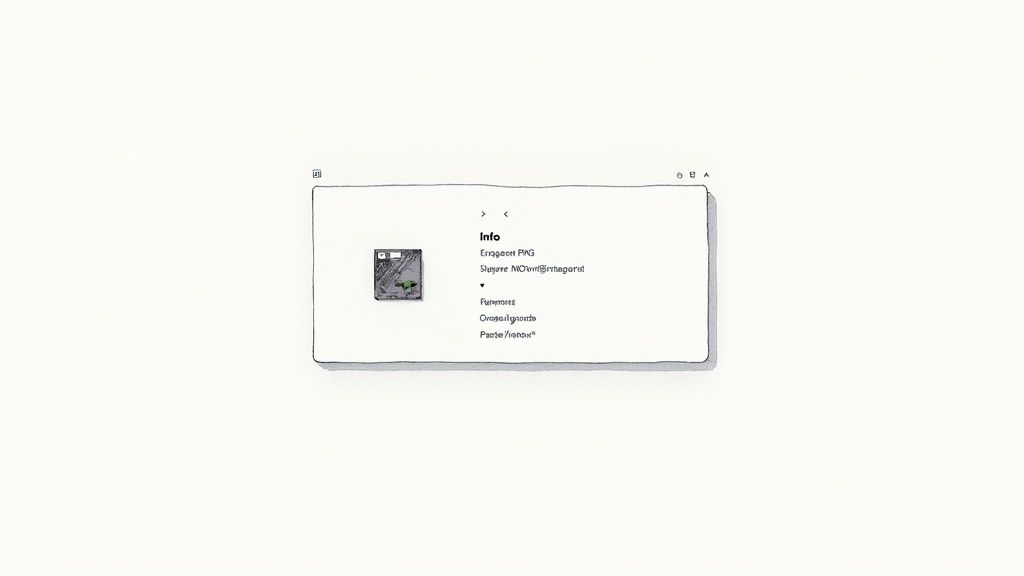
If you've ever tried to customize folders on a Mac, you probably noticed it's a little different from Windows. There's no obvious "Customize" tab to click. But don't let that fool you—changing folder icons on macOS is incredibly simple. It all comes down to a quick copy-and-paste trick that you'll master in seconds.
This whole process works through the Get Info panel, which is basically the command center for any file or folder on your Mac. It’s the perfect tool for swapping out that standard blue folder icon for something more descriptive, like a custom AI-generated icon from a tool like VibeIcons.
The "Get Info" Copy-Paste Trick
First, you'll need an image to use for your new icon. I've found that high-resolution PNG files with transparent backgrounds work best. They just look cleaner and blend right into the macOS interface without any weird-looking boxes around them.
Once you have your image ready:
- Open the image file. Just double-click it, and it should open in the Preview app by default.
- Copy the image data. Hit Command + A to select the whole image, then Command + C to copy it. Nothing will pop up, but trust that it’s now on your clipboard.
Now, head over to the folder you want to change. Right-click it and choose Get Info (or just select the folder and press Command + I). This brings up a small window with all the folder's details.
Look at the top-left corner of that Get Info window. See that tiny folder icon? That's your target. The entire trick to changing folder icons on a Mac is right there.
Click on that tiny icon preview. You'll see a faint blue glow appear around it to show it's selected. Now, just press Command + V to paste. Boom. Your folder icon instantly updates everywhere—on your desktop, in Finder, and in the Get Info window itself. It's a surprisingly slick and effective way to organize your workspace.
A Few Tips for Mac Icons
To keep your desktop looking sharp and professional, try to stick with icons that work well on both light and dark mode backgrounds. This is where those transparent PNGs really shine. If you use a JPG, for example, you'll likely end up with a solid white or black square behind your icon, which can look a bit clumsy.
And what if you change your mind and want the classic blue folder back? No problem. It's just as easy to reverse.
- Open the Get Info panel for the custom folder.
- Click the custom icon one more time.
- Hit the Delete key.
The folder will immediately revert to the macOS default. It’s a handy little reset button for your customizations.
Crafting Your Own Icons with a Little Help from AI
System icons get the job done, but they're a bit… generic. If you really want to make your desktop your own, the magic happens when you create icons that are uniquely yours. Thanks to AI, this is no longer a complicated design task.
AI icon generators, like the one we've built at VibeIcons, have completely opened up the world of icon creation. You don't need to be a designer to get something truly special.
Think about it: you need an icon for that new "Side Hustle" folder. Instead of settling for a generic yellow folder, you could just type a quick description like, “a vintage-style treasure chest overflowing with gold coins, 3D icon,” and get a perfect, custom-made icon in seconds. This isn't just about changing an icon; it's about giving your digital space a personality that matches your own.
How to Write Prompts That Get Great Results
Getting the AI to create what you're picturing in your head all comes down to the prompt. A few well-chosen words can make all the difference. Think about the style, the colors, and the feeling you're going for.
Here are a few tips I've picked up:
- Get Specific: Don't just ask for a "work icon." Try something more descriptive like, "a sleek, dark mode icon of a glowing laptop, minimalist style." The more detail, the better.
- Name the Style: Add keywords that define the aesthetic. Think "pixel art," "photorealistic," "cartoonish," or "watercolor style."
- Guide the Color: If you have a color scheme in mind, say so! Something like "soft pastel pinks and blues" or "bold neon green and black" will point the AI in the right direction.
This gives you an endless playground for creativity. You can design a whole matching set for your client folders, create a visual theme for your school projects, or just make something fun that makes you smile.
With AI, you stop being a user just picking from a list and become a designer creating a visual language for your own digital world. It's the best way to make your workspace both organized and genuinely inspiring.
This is an incredibly powerful way to generate unique .ico or .png files ready for your folders. And it's not just about text prompts. You can also explore other cool AI techniques; for example, you can make icons from images and turn a favorite photo into a one-of-a-kind folder icon.
Advanced Strategies for Digital Organization
So, you know how to change a folder icon. That's the first step. The real game-changer is using that skill to build a digital command center that lets you find what you need in a split second. This isn't just about making things look pretty; it's about creating a visual language for your files.
Think about it this way: what if your most important, active project folders had bright, bold icons, while archived files used muted or grayscale versions? Instantly, you've created a visual hierarchy. Your brain can immediately distinguish between "work on this now" and "this is just for reference" without even reading a file name.
This approach turns a chaotic desktop into a genuinely intuitive dashboard. And it’s not just a neat trick—the data shows it works. Some 2022 surveys revealed that 56% of Windows users customize their icons specifically to get more done. In office environments, well-organized digital systems have been shown to cut down file retrieval times by as much as 30%. If you're curious, you can learn more about how people are getting organized and find other insights on folder customization.
Creating a Color-Coded System
Another fantastic strategy I’ve used for years is color-coding. It’s incredibly simple but profoundly effective for keeping different parts of your work or life separate. Just assign a color to a category, and your file system becomes a rainbow of efficiency.
Here’s a real-world example of how this might look:
- Green for Finance: Every folder dealing with invoices, budgets, and receipts gets a green icon. No more hunting around when tax season hits.
- Blue for Clients: Each client gets their own folder, but they all share a blue-toned icon, making it easy to find all client-related work at a glance.
- Red for Urgent Tasks: Anything time-sensitive or with a looming deadline gets a red icon. It’s a visual alarm bell.
This kind of visual shorthand saves a ton of mental energy. Instead of reading through lists of text, your eyes just jump to the color you need.
The great thing is, with a tool like VibeIcons, you can generate exactly the icons you need with simple text prompts. The process is incredibly straightforward.

As you can see, it's just a simple, three-step journey from a basic idea in your head to a custom icon ready to use on your system.
Choosing the Right File Format
Getting into the technical side for a moment, the file format you choose for your icons actually matters. Picking the right one ensures your custom icons look crisp and clean everywhere, from the desktop to the file explorer. The main formats are .ico for Windows and .icns for macOS, though the versatile PNG has its uses too.
To make it simple, here's a quick breakdown of what to use and when.
Icon File Format Comparison
| File Format | Best For | Key Features | Compatibility |
|---|---|---|---|
| .ico | Windows systems | Bundles multiple sizes (16x16 to 256x256) in one file to prevent blurriness. | Native to Windows. |
| .icns | macOS systems | Similar to .ico, it's a container for multiple image sizes for scalability. | Native to macOS. |
| .png | Universal use & Mac | Supports transparent backgrounds, ideal for clean, modern looks. | Works on Mac directly; needs conversion for Windows. |
Choosing the right format is the final polish on your organizational system. It ensures that all your hard work creating a visual language doesn't get undermined by blurry or pixelated icons.
Key Takeaway: For Windows, stick with the .ico format. It’s designed to bundle multiple resolutions into a single file, which means your icons will always look sharp, no matter their size. On a Mac, you can often get away with a high-resolution PNG with a transparent background for a super clean look.
These are the kinds of details that separate a desktop that's just been tidied up from one that's been truly optimized for productivity.
Got Questions? Let's Talk Folder Icons
So you've mastered the art of changing your folder icons, but sometimes things don't go quite as planned. It happens. Let's walk through a few of the most common hiccups people run into so you can keep your desktop looking sharp.
"Help! My Custom Icon Vanished!"
This is a classic. You pick the perfect icon, set it up, and the next time you reboot, it's back to that boring old default folder. What gives?
Nine times out of ten, this happens because the original icon file you used was either moved or deleted. Your computer doesn't actually absorb the image into the folder; it just remembers where to find it. If that file path breaks—say, you used an icon from your Downloads folder and then cleared it out—the link is broken, and the folder reverts.
The trick is to create a dedicated, permanent home for your icons. I have a folder called
_Assets\Iconsright in my main user directory. Before I apply any icon, I move the file there first. That way, it's never going anywhere.
What’s the Best File Format for Icons?
The format you use really does matter for how good your icons look.
For Windows, you can't beat the .ico format. It’s the native format for a reason. A single .ico file can cleverly bundle multiple sizes of the same icon, so it looks crisp and clear whether it’s a huge tile in File Explorer or a tiny icon in the address bar.
On a Mac, the native format is .icns. However, you can also get away with using a high-resolution PNG, especially if it has a transparent background. A good PNG will look fantastic and integrate cleanly into the Dock and Finder.
My rule of thumb? Stick with the native format for your system whenever you can. It guarantees the best results.
Can I Change a Bunch of Folder Icons at the Same Time?
This is the big one, especially if you're organizing a massive project. Unfortunately, both Windows and macOS make you do this one by one right out of the box. It can feel like a real chore.
The good news is that you don't have to suffer. There are some fantastic third-party tools built just for this. On Windows, I've used FolderMarker to color-code and icon-up entire project directories in seconds. For Mac users, an app like Folder Factory can do the same job, saving you a ton of repetitive clicking.
Tired of hunting for the right icon? Why not just create it yourself? With VibeIcons, you can describe what you want and generate a totally unique, high-quality icon in seconds. You get your first five icons completely free to start building a workspace that’s truly yours. Start creating with VibeIcons today!