Icon PDF PNG Choosing the Right Format
Struggling with icon PDF PNG formats? Learn the key differences in scalability, quality, and use cases to choose the best format for your design projects.
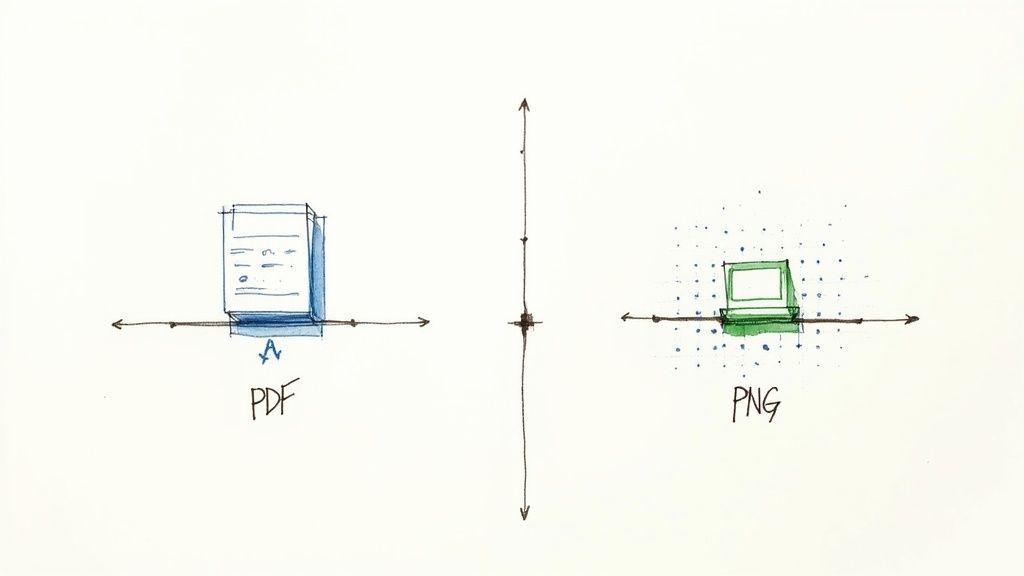
When you're picking an icon format, the whole PDF vs. PNG debate really boils down to a single, critical question: do you need scalability or are you building for the web? PDFs are vector-based, which means they're built to scale up or down without limits, making them perfect for print work and master files. On the other hand, PNGs are pixel-based, and they shine online where you need fixed sizes and clean, transparent backgrounds.
Comparing PDF and PNG for Icons
Deciding whether to use a PDF or a PNG for an icon hinges entirely on where and how it will be used.
Think of a PDF as the master blueprint. It's a vector file constructed from mathematical equations, not pixels. This means you can stretch it to the size of a billboard or shrink it to fit on a business card, and it will never lose an ounce of sharpness. That’s why it’s the go-to format for logos and core brand assets that have to look crisp everywhere.
PNGs, however, are raster images, meaning they're built from a fixed grid of pixels. Their home turf is the digital world. For web design, they're indispensable because they handle transparency beautifully, allowing your icon to sit perfectly on any colored background without that clunky white box.
This fundamental difference—vector vs. pixel—is the key to making the right choice. It's no surprise that PDF has become a business staple; in fact, 98% of businesses rely on PDFs for sharing documents externally, as highlighted in PDF usage statistics from Smallpdf.
PDF vs PNG Quick Comparison
To make the decision a bit easier, here’s a quick rundown of what sets these two formats apart when it comes to icons. This table should help you see at a glance which one fits your immediate needs.
| Attribute | PDF (Vector-Based) | PNG (Pixel-Based) |
|---|---|---|
| Best Use Case | Master files, print, branding | Web, UI elements, digital media |
| Scalability | Infinite without quality loss | Loses quality when enlarged |
| Transparency | Supported, but less common | Excellent (Alpha Channel) |
| Editing | Easily editable in vector software | Requires pixel-based editors |
At the end of the day, you'll probably need both. Use the PDF as your unchangeable master copy and export optimized PNGs from it for all your digital applications. This workflow gives you the best of both worlds: ultimate flexibility and web-ready performance.
Understanding the Core Technical Differences
To really get to the heart of the PDF vs. PNG debate for icons, you have to understand what makes them tick. It boils down to one being a mathematical blueprint and the other being a mosaic of tiny colored squares. This single difference changes everything about how they scale, look, and perform.
A PDF icon is a vector graphic. Think of it as a set of instructions—mathematical equations that define points, lines, and curves. Every time you view it, your device follows these instructions to draw the icon perfectly. Because it's based on a formula, you can blow a PDF icon up to the size of a billboard or shrink it down to a pinhead, and it will stay razor-sharp. No fuzziness, ever.
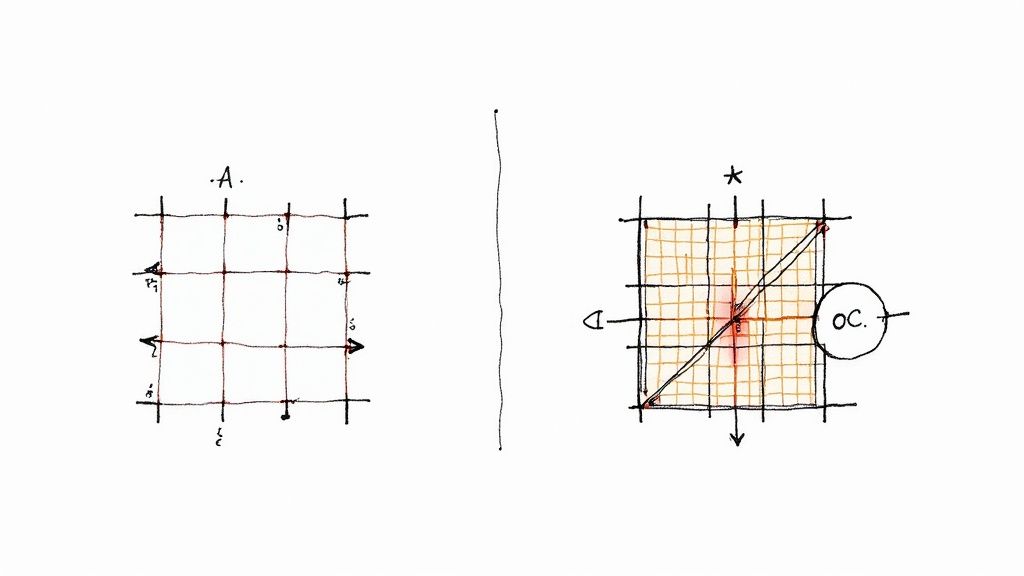
On the flip side, a PNG icon is a raster graphic. It's a bitmap image, which is a fancy way of saying it’s a fixed grid of pixels. Each tiny square in the grid has a specific color, and together they create the image you see. This works great for digital displays, but it comes with a major catch: you can't resize it freely.
Vector Precision vs. Pixel Grids
When you try to enlarge a PNG icon past its original size, the software has to guess what colors to fill in the new, larger grid of pixels. This process, known as interpolation, is what causes that blurry, jagged-edged look we’ve all seen. The quality just falls apart.
Here's a good way to think about it: A PDF is like a musical score, while a PNG is like an MP3 recording. You can give the score to any orchestra, and they can play it loud or soft (scale it) without losing quality. But if you just crank the volume on the MP3, you get distortion and noise.
This is precisely why professional designers always start their work in a vector format. If you're curious about the process, learning how to make a vector image in Illustrator is the first step to creating a master icon that can be used for anything. The source file stays perfect, no matter where it ends up.
The bottom line? PDFs give you infinite, lossless scalability, which makes them the gold standard for master icon files. PNGs aren't scalable, but they are fantastic for screen displays at fixed sizes, especially since they support transparent backgrounds with an alpha channel—a must-have for modern web and app design.
A Detailed Format Comparison
When you put PDF and PNG icons head-to-head, you start to see the critical trade-offs that designers and developers have to navigate with every project. This isn't just about what looks good; your choice impacts everything from how sharp your icons look when scaled up to how quickly your site loads.
Each format really shines in different situations. PDFs have been the go-to for documents for years, but they’re also a powerhouse for digital art and print because they keep images looking perfect and can bundle text and graphics together. On the flip side, PNGs are the undisputed champions of the web, prized for their clean transparency and sharp quality. If you're interested in a deeper dive, exwhyzed.com offers great insights into file formats for digital art.
Scalability and Visual Fidelity
The biggest difference between the two? Scalability. It's not even close.
A PDF icon is built on vectors, which are essentially mathematical equations. This means you can stretch it to fit a billboard or shrink it down to a tiny favicon, and its lines will stay perfectly crisp every single time. No quality loss, ever.
A PNG, however, is a raster image. It’s made up of a fixed grid of pixels. At its original size, it looks great. But the moment you try to enlarge it, the software has to start guessing how to fill in the new, empty pixels. The result is that classic, blurry, and jagged look we all know as pixelation.
The Bottom Line: If you need a master icon file that will be used in a dozen different sizes—from small UI elements to large print materials—a vector PDF is your only truly reliable option. PNGs are best when you know the exact final size you need.
File Size and Complexity
When it comes to file size, things get a little more interesting.
For a simple, single-color icon, a well-optimized PDF is often smaller than its PNG counterpart. That’s because the PDF only needs to store a few lines of code describing the shape, not information for every single pixel.
But as the design gets more complicated—think gradients, intricate shapes, or multiple layers—the PDF’s file size can swell. The more complex the math, the bigger the file. In these cases, a PNG might actually be smaller. This balance is especially important for web performance, a key factor when selecting icons for web development.
Editing Flexibility and Workflow
Finally, let's talk about making changes. Editing a PDF icon in a vector program like Adobe Illustrator is completely non-destructive. You can tweak colors, reshape paths, and adjust strokes with ease because you’re just changing the underlying formulas.
Trying to edit a PNG is a different story. It’s a destructive, pixel-based process. Changing a color means painting over the old pixels, which can degrade the quality. Reshaping an element means you’re stuck erasing and redrawing, which is far from precise. This makes PDF the clear winner for any source file you expect to update down the line.
Feature-by-Feature Format Breakdown
To make the choice clearer, let’s break down how PDF and PNG stack up across the most important features. This table gives a direct, side-by-side look to help you decide which format is right for your specific task.
| Feature | PDF Icon | PNG Icon | Best For |
|---|---|---|---|
| Scalability | Infinite. Resizes perfectly without any loss of quality. | Limited. Loses quality and pixelates when enlarged. | Master files, print, responsive design where multiple sizes are needed. |
| File Type | Vector. Based on mathematical equations. | Raster. Based on a fixed grid of pixels. | Final-size web graphics, digital images where a fixed size is known. |
| File Size | Smaller for simple icons, but grows with complexity. | Larger for simple icons, but can be smaller for complex photo-like images. | Simple, geometric icons and logos. |
| Transparency | Supports full transparency. | Excellent support for alpha channel (variable) transparency. | Web graphics needing a transparent background, like logos on a website. |
| Editing | Non-destructive. Easy to change colors, shapes, and strokes. | Destructive. Changes are permanent and can degrade quality. | Source files that will need future updates or brand variations. |
| Best Use Cases | Master icon files, logos, print design, complex illustrations. | Web icons, favicons, social media graphics, email images. | Situations requiring a specific, static image size with transparency. |
Ultimately, the best format depends entirely on your end goal. For master files and print, PDF is the champion. For final, pixel-perfect web use, PNG is often the right call.
When to Use PDF vs PNG Icons in the Real World
Alright, let's move beyond the technical jargon and get into the real-world stuff. Deciding between a PDF or PNG icon isn't just about specs; it’s about where your icon will ultimately live. The context—is it for print, a website, or an app?—is the most critical factor.
Think of it this way: each format has its own job to do in a professional design workflow.
The Clear Case for PDF Icons
When a project demands flawless scaling and razor-sharp precision, PDF is your go-to. I like to think of it as the master key for a brand's visual identity.
You should always reach for a PDF or another vector format in these situations:
- Master Logo Files: Your company’s primary logo has to be a vector file, period. This ensures you can shrink it for a tiny favicon or blow it up for a massive trade show banner without losing a single pixel of quality.
- Brand Style Guides: When you're putting together a brand guide, supplying icons as PDFs lets other designers use them correctly across all sorts of media, just as you intended.
- High-Resolution Print: For anything physical—brochures, business cards, merchandise, you name it—a vector PDF is non-negotiable. It's the only way to guarantee a crisp, professional print every time.
The core principle is simple: if the icon might ever need to be resized, start with a vector format like PDF. This preserves the integrity of your design and saves you from the headache of recreating assets later.
When PNG Icons Are the Right Choice
PNGs have become the workhorse for web graphics, and for good reason. Their lossless compression keeps images sharp, and—crucially—they support transparency. This makes PNGs perfect for infographics, web banners, and any graphic that needs to sit cleanly on a colored background.
Their file sizes can be a bit larger than JPEGs, but their universal support across browsers makes them a reliable, safe bet for digital design. You can learn more about how PNG compares to other formats on Shutterstock.
This decision tree breaks down the core question when choosing an icon format based on scalability.
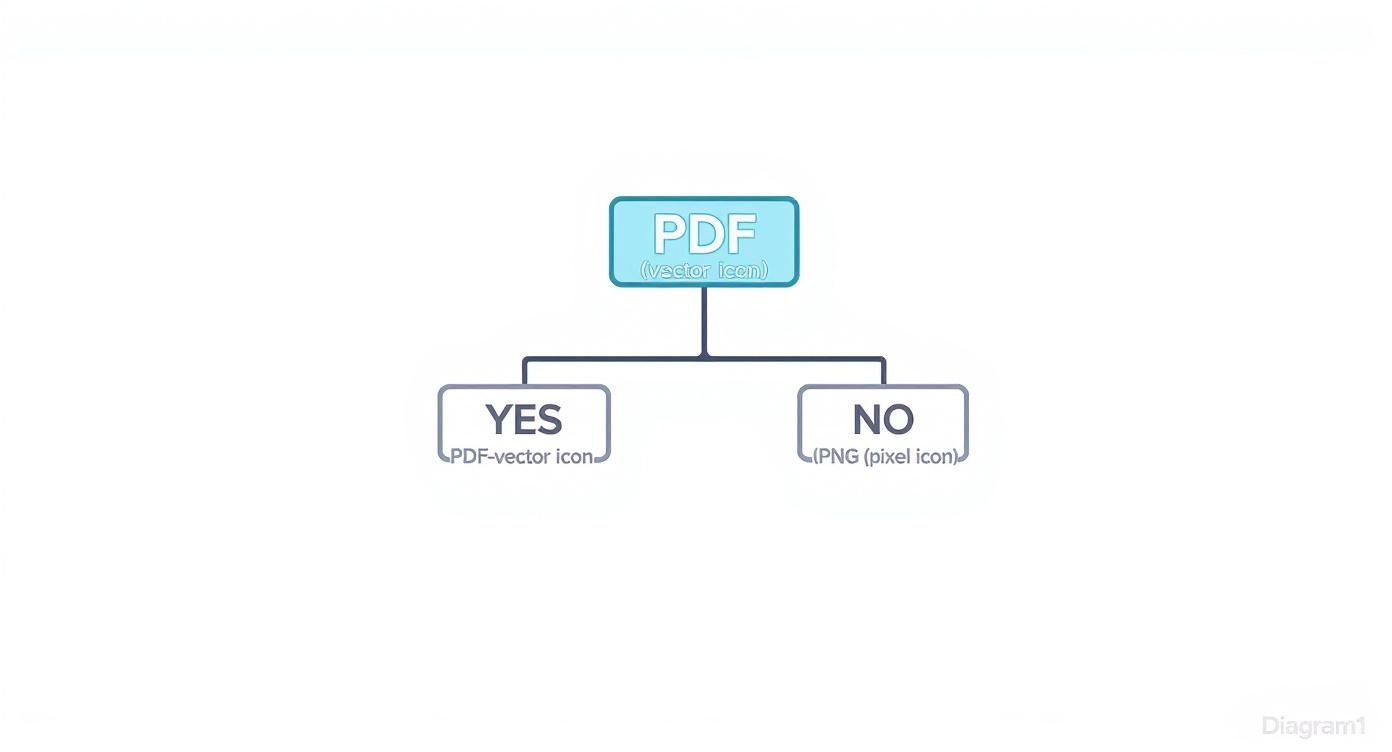
As the visual shows, it's pretty straightforward. If you need an icon that can be scaled up or down indefinitely, PDF is the only way to go. Otherwise, for fixed-size digital uses, PNG is your reliable friend.
Getting Your Icon Files Ready for Action
Picking the right format is a great start, but how you prepare and optimize your icons is what really makes them shine. Whether you're dealing with a PDF or a PNG, a little prep work up front saves you from a world of headaches, like slow load times and blurry visuals.
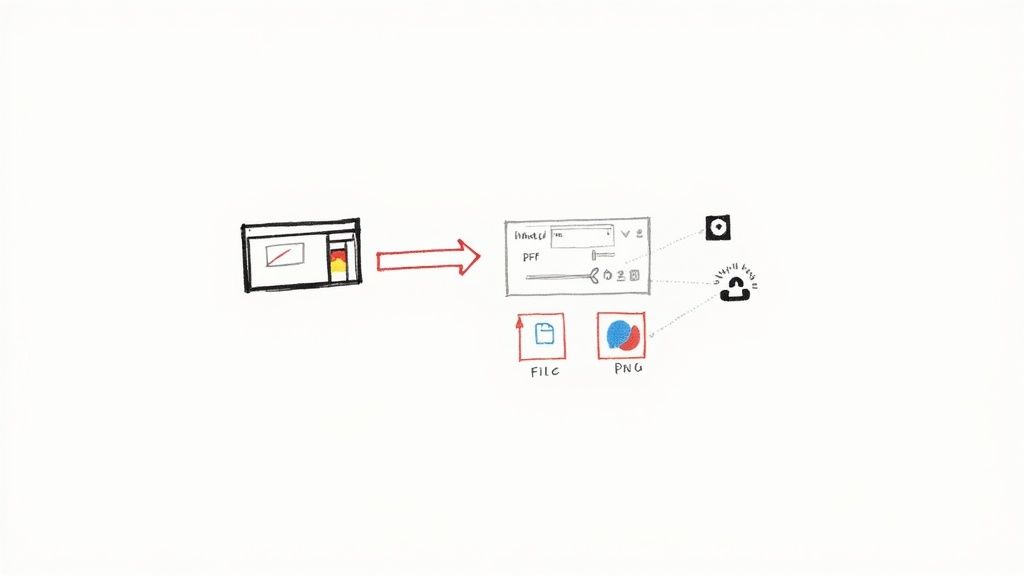
It all starts with your export settings in tools like Adobe Illustrator or Figma. If you're exporting PNGs, you're constantly playing a balancing act between sharp resolution and lean file size to keep your website or app feeling snappy.
Tips for a Perfect PNG Export
To get a web-ready PNG, you need to nail the export settings. A cardinal rule is to export your icon at the exact dimensions it will be displayed. This stops the browser from having to resize it on the fly, which almost always results in a softer, less crisp image.
Once you have your PNG, the next step is compression. Run it through a tool like TinyPNG, which can often shrink file sizes by up to 70% without any visible loss in quality. This is non-negotiable for fast-loading websites. Of course, one of the main reasons we use PNGs is for their transparency support, which you can read all about in our guide to making an icon with a transparent background.
Pro Tip: Set up an "asset pipeline" when you export from your vector source. Save out multiple standard sizes at once (think 24x24, 48x48, and 96x96 pixels). This saves you a ton of time and gets you ready for different screen densities and platform-specific needs, like app icons for iOS and Android.
Creating a Clean, Universal PDF Icon
When you're saving a PDF icon, the name of the game is compatibility. You want a file that anyone can open and use without things breaking.
Before you hit export, make sure to convert all text elements to outlines or shapes. This simple step embeds the font's geometry into the file, guaranteeing the icon looks exactly as you designed it, no matter what fonts are installed on someone else's machine.
Also, it’s a good practice to save your PDF using a common compatibility setting, such as Acrobat 6 (PDF 1.5). This ensures your icon will play nicely with a huge range of software, preventing frustrating rendering bugs and making it a truly reliable master file.
Frequently Asked Questions
Got a few lingering questions about PDF and PNG icons? You're not alone. Let's clear up some of the most common points of confusion so you can put these formats to work correctly.
Can I Use a PDF as an Icon on My Website?
The short answer is no, not directly. You can't just pop a PDF into an <img> tag like you would a PNG or JPG. Web browsers aren't built to render PDFs as inline images.
Your best bet for a scalable, vector-based icon on the web is an SVG (Scalable Vector Graphics) file. Think of your PDF icon as the high-quality master file. From there, you can easily export an SVG for perfect scaling or a PNG for those times when you need a specific, fixed size.
Which Format Is Better for an App Icon?
For app icons, it’s not an "either/or" situation—you need both. Your workflow should always start with a vector file. Whether it's an AI, SVG, or even a PDF, this vector version is your single source of truth.
From that one master file, you'll need to generate a whole bunch of PNGs. App stores for iOS and Android have strict requirements, demanding dozens of different PNG sizes to make sure your icon looks sharp on every single device, from a tiny watch screen to a high-res tablet.
Key Takeaway: Always start with a vector master. A single, scalable file (like a PDF or SVG) gives you the flexibility to export all the fixed-size PNGs you need for app stores without re-creating anything. It's a massive time-saver.
Does Converting a PNG to a PDF Make It a Vector File?
This is a common misconception, but unfortunately, it doesn't work that way. Simply wrapping a PNG file inside a PDF doesn't magically turn the pixels into vector paths. The PDF is just a container, and the image inside is still the same raster graphic.
If you try to scale up that PDF, you'll see the PNG inside get pixelated and blurry. To get a true vector PDF, you have to build it from the ground up with vector shapes and lines in a program like Adobe Illustrator.
Stop searching and start creating. With VibeIcons, you can generate the exact icons you need, perfectly matching your existing style libraries in seconds. Try it for free at https://www.vibe-icons.com.